.png)
GG
By
Published May 22, 2019
No headings found
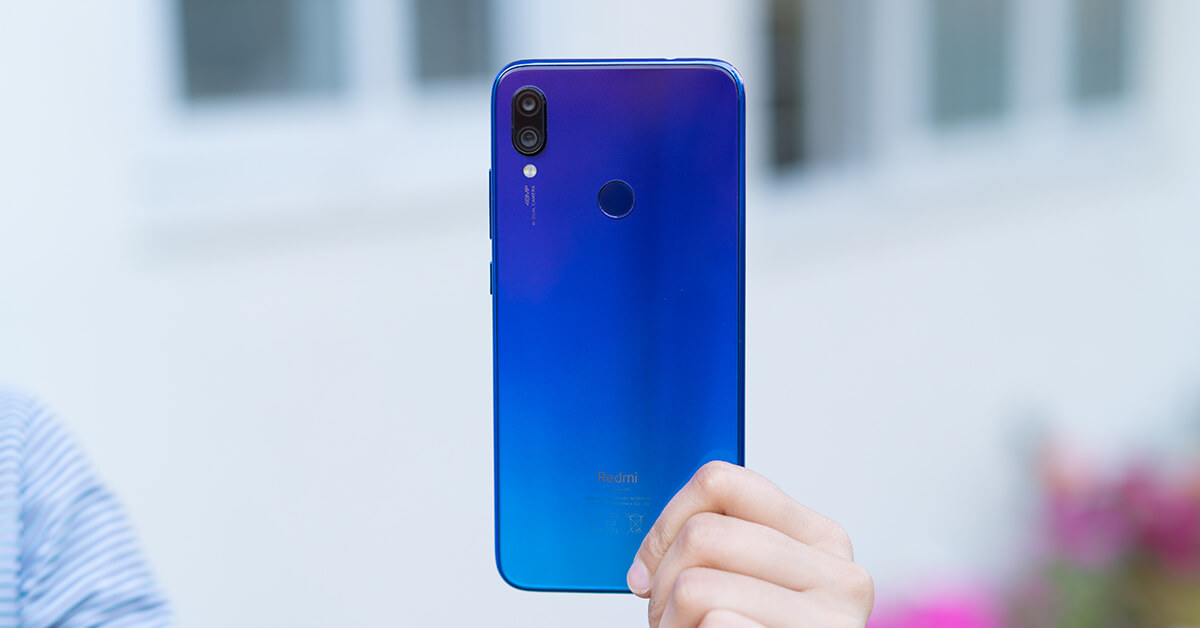
When I got the Redmi Note 7, I was really excited about the 48 MP camera. But after taking some photos with it, I wasn’t really impressed. So, I looked to Google for help. Well, not Google, but Google’s camera – the GCam, which is so kindly developed by some experts from XDA Developers, for other phones as well.
To see if your phone supports GCam or not, you need to download the Camera 2 API app and check it. If it shows a Level 3 Hardware support, it means that your phone supports all features offered by the GCam. And after downloading and testing it, the app will show you the results. In this case, the Redmi Note 7 supports Level 3 and I installed the Gcam and compared it with the stock camera.
I tested the camera prowess of the device in 4 different settings – Normal Mode, Portrait Mode, Night Mode, and Selfies.
Normal Mode
Here’s the first image sample. There’s ample light in the surroundings and here are the results from both the stock camera and Gcam app. As you can see, the colors look quite better in the GCam. That Blue colors on the wall look quite lively with slightly better details, here but kinda faded on the stock camera.No gallery images available
The second image, of this flower here, reveals nearly the same result. The GCam preserves the details and looks better than the overexposed image of the stock camera, but there’s some increased contrast and shadow details are crushed. Yet, it still looks better than the stock camera photo.
No gallery images available
With the 3rd image, it does the same thing. The Stock camera loses a significant amount of details. The texture on the roof is next to non-existent and the leaves on the trees look mushy. There are very fewer shadow details, and if you look at the central pillar inside, the texture is lost completely.
No gallery images available
By now, it should be evident that the stock camera sucks compared to GCam. Here, too, the textures of the bricks are lost, the leaves on the trees look very soft, and the electric wires nearby are wiped out.
No gallery images available
Okay, here’s the last one of the Color test. Again, the stock camera fails to bring true colors in the images. But at least, here, the details are as good as the one on GCam.
No gallery images available
Portrait Mode on Gcam
Let’s move on to portraits now. The portraits on the GCam are zoomed in, by default but there’s an option in the camera settings to disable that. Okay, here’s the first portrait on both. And it’s easy to see that the stock portrait looks fuzzy, has fewer details and washed out colors. But despite doing that well, the GCam suffers on the edge detection slightly. Contrast is also a bit too high, but since the facial details are there, GCam wins.No gallery images available
In this portrait, the colors are again, washed out on the stock camera. Just look at the shirt and jeans! The GCam, on the other hand, maintains a good amount of contrast and looks more natural, but again, suppressed highlights on the hair.
No gallery images available
In this image, GCam’s deeper blacks make the colors look better. The skin tone and texture are well maintained too.
No gallery images available
Here, with a harsh light on the background, GCam’s edge detection is poor. But it still manages to preserve details and maintain the natural skin tone.
No gallery images available
In low light portraits, there is not much difference between the two. But the image from GCam shot looks slightly brighter.
No gallery images available
So, I fairly like GCam’s portraits, and most of the results are fairly consistent. When used right, you can also get nearly perfect shots like this!
No gallery images available
Selfies from Gcam
Moving to the selfie department, there’s the mirror effect on the GCam, and I couldn’t find any modes to turn it off. But if you can get past that, the GCam has better colors and details – from the natural skin color to the textures.No gallery images available
The result is the same with portrait selfies too. Background blurs look more natural on the GCam as well.
No gallery images available
But edge detection is not always perfect on the GCam. If you look at this part, here, some part of the background is also in focus.
No gallery images available
So, it appears that the GCam is the clear winner here. But still, I wanted to compare these in low light, and since there’s Night Mode on both, why not?
Night Sight Feature on Gcam
And these are the first images in low light settings, but with Night Mode turned off on both. Here, the stock camera overexposes the highlights, and colors look washed out. In fact, the stock camera fails to capture the true colors, and gradients are nowhere to be found on the image from the stock camera.No gallery images available
Here’s another similar shot. The stock camera produces a mushy image, while the GCam manages to pull in better colors and more details while maintaining the contrast.
No gallery images available
And then, here are some shots with the Night Mode turned on. The fact that a phone like Redmi Note 7 features a night mode is impressive, but how does this fare alongside GCam’s Night Sight? Let’s see.
This is a normal shot from the Stock Camera. The temple’s artifacts aren’t really visible and water painting effect is gone. With the Night mode turned on, there’s a slight improvement, but it still lacks details. On the other hand, the pictures on the GCam gets better with the Night Sight on.
No gallery images available
On this stock image, too, the highlights are overblown but seems a bit controlled with the Night Mode. There’s also an extra pinch of details on the Night mode image, but the colors are still faded. GCam’s Night Sight, however, has true colors but quite preserved the details and highlights.
No gallery images available
On this image, the level of details is more or less similar down to the colors, so, can’t really tell the difference between the two.
No gallery images available
Okay, this is the image where the stock camera seems to do a better job than the GCam. And so, I had to take this on the GCam twice to double check. However, in both the images, the highlights are overexposed while the stock camera controls it pretty well. The Buddha’s face is clearly visible here. However, GCam is still better in terms of colors.
No gallery images available
For all the high-res images, Click here.
Conclusion
So, there you have it. From all the images in the comparison, it’s clear that GCam does better by bringing true colors, preserving details and maintaining good contrast. Portraits are also impressive and the selfies are remarkable. Although not perfect, with the GCam installed, you can actually turn the Redmi Note 7 into an amazing camera phone!Article Last updated: May 22, 2019